Understand and Avoid “Keep my changes and open the model” window
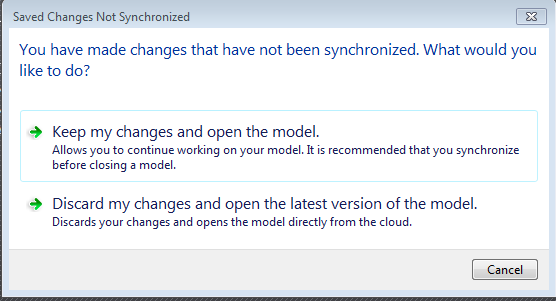
Understanding the prompt:
The "Keep my changes and open the model" prompt in Revit worksharing environments, particularly with cloud-based platforms like BIM 360 and Autodesk Construction Cloud (ACC), typically surfaces when you attempt to open a cloud-workshared model after an unexpected Revit closure or if you closed the application without properly synchronizing your local changes to the central model.
If this happens to you:
Choosing "Keep my changes": This action opens your local copy of the model, retaining all modifications you made since your last synchronization. Crucially, this means your local model is now out of sync with the central model. You are required to synchronize these changes back to the central model as soon as possible to integrate them and fetch the latest updates from your team.
The alternative (often "Discard local changes and open from central"): This option typically discards your unsaved, local work to open the most current version of the central model. This is safer if your local changes are minimal or if you are unsure about the state of your unsaved work.
Understanding the implications is key. The prompt signals a divergence between your local work and the authoritative central model, which can lead to coordination issues.
Potential significant issues:
Data Loss and Coordination Issues: The most immediate risk is data loss. If you "keep your changes" and fail to synchronize correctly, your work might become incompatible with the central model, potentially overwriting others' contributions or causing model corruption.
ACC Specific Challenges: In the Autodesk Construction Cloud environment, the concept of local backups might differ from traditional server-based worksharing. Prolonged periods without synchronization can exacerbate data loss risks as there might be fewer recovery points.
Proactive habits to avoid encountering this prompt frequently:
Synchronize Regularly and Frequently: Make synchronizing with the central model a constant habit. Aim for short intervals, especially in active projects, to minimize the amount of unsaved work. This also helps in resolving potential conflicts early.
Save Locally (Ctrl+S) Between Syncs: While synchronization is key for collaboration, saving your local file regularly (using Ctrl+S) ensures your immediate work is safe even if Revit crashes before you get a chance to sync.
Relinquish Worksets Consistently: Before taking breaks or ending your workday, make it a habit to relinquish all borrowed elements and worksets. This practice ensures that your colleagues can access and modify elements they need, preventing bottlenecks.
Open from Central or ACC Interface: Always open workshared models from the central model or directly through the Autodesk Construction Cloud interface. Avoid opening files from your 'Recent Files' list, especially after a crash, as this can inadvertently lead to opening an unsaved or corrupted local copy.
Maintain Consistent Software Versions: Ensure all team members are using the same version and build of Revit. Compatibility issues with Autodesk Desktop Connector versions should also be addressed.
Perform Regular Model Maintenance: Schedule routine maintenance tasks such as "Purge unused" items, weekly "Audit" operations on the central file, and regular compacting of the central model.
For more resources on BIM best practices, visit ndr-bim.com.